Greetings to the blogging world!
I'm on "Day Two" of my DVR setup (even though a few days have passed since Day One...sue me).
I'm happy to report that progress is proceeding steadily....if not entirely as smoothly as day one. Here's a recap of what's been going on so far:
The good:
* Did I mention just how fast this thing can boot? I go from a cold start to a usable desktop in under 20 seconds! The Ubuntu load screen only flashes for less then a second, then bang, it's there.
* Skype is working well. I can make and receive calls and am getting good reception for audio calls. However, the Skype I installed from the Ubuntu repositories wasn't working, but rather was hanging every time I tried to sign in. Rather, I download and installed the .deb file form Skype itself (they state it's for 8.10+) and that one is working much better.
The bad:
* Despite my sound initially working when I first tried it, I have run into a few minor issues. Namely, I can't get the back audio jack and the headphone jack to work as I'm used too. Initially, plugging in the head phones would mute the rear speakers, but not give me any sound through the headphones. The volume was also quite low. I installed the "Alsa backport" which helped with the volume issues, though the audio still mutes whenever I plug in the headphones. It seems I can only have both jacks working at the same time, or both muted. Here are a few links I've been following on this issue.
**http://www.paralaptop.com/ubuntu/fix-ubuntu-10-04-lucid-lynx-headphone-jack-sense-problem.html
**http://playingwithsid.blogspot.com/2010/06/headphone-jack-sense-problem-in-ubuntu.html (headphone port doesn't mute audio)
* My web cam isn't quite working the way I want. I can an image using Cheese, but it's very dark and looks grainy. I also can't get an image through with Skype.
* TV-out was not working initially. First, I couldn't get the TV to show up at all in nvidia-settings, though I later did by plugging it into my AV adapter, rather then my DVD recorder. Still, I was getting no video on the screen. Eventually I was able to get an image on the screen by turning on the output with nvidia settings, having an Xorg.conf file, then adding the following two lines to the Screen section:
Option "TVOutFormat" "SVIDEO"
Option "TVStandard" "NTSC-M"
Since the video card also seems to be capable of of Component output via a 7-pin to S-video adapter, my hypothesis is that it was trying to use a component signal by default. Some links I used to help me resolve this are:
* https://help.ubuntu.com/community/NvidiaTVOut
* http://us.download.nvidia.com/XFree86/Linux-x86/173.14.09/README/chapter-16.html
* There is still an additional problem with the video out, I get two wavy "bands" moving slowly up the screen. I think this may be a problem with refresh rate, but I don't seem to be able to change the refresh rate beyond 59.94 Hz (e.g. using regular 60 Hz), even from Xorg.conf. It's highly noticeable on still images, though less so on video, so that's good. It doesn't seem to be being caused the by the cable or TV since I can use the same with my W7 laptop with no lines. I'll continue to investigate.
Thursday, October 14, 2010

Ubuntu HTPC - Day One
Earlier in the week I received delivery of my new tower that I ordered with which I'm working on constructing my Ubuntu HTPC.
The primary focus of this machine will be to use as a PVR and HTPC, though I'll also be using it for general IM/Email/Web browsing, as well as some Linux Gaming, Wine usage and video editing.
I'll be starting off with some basic hardware, and expanding as I need too, though hopefully I already have much of what I need. The system hardware as it stands now is:
* AMD Athlon X2 250 @ 3.0Ghz
* ASUS motherboard with USB 3.0 and HD Audio
* 2 GB DDR3 ram # 1333 mhz
* Nvidia GeForce 9400GT @ 1GB Ram (VGA, DVI, S-video/Component ouputs). This card was selected with S-video output since I don't own a HDTV, nor plan to by one in the future. My monitor is high definition, for which I'm using the DVI and still have the spare VGA for my laptop.
* Hauppage HVR-1600 tuner card
* 320 GB SATA drive @ 7200 rpm
* Multi-card reader
* 21.5 inch High Definition Fluid LCD @ 1920x1080 resolution
* Sony external USB 2.0 DVD RW drive.
* Logitech wireless keyboard/mouse, gamepad, webcam, etc.
I also purchased a 2TB USB 3.0 External drive for backup and storage. Ubuntu was selected for the operating system since I to use MythTV as my PVR software and due to the high customization potentials. I considered installing Ubuntu 10.10, but ultimately decided to stick with 10.04 LTS since I figured there would be more community support for it, and I don't necessarily want to need to upgrade in six months. I also want to significantly increase my Linux knowledge as much as possible. I decided against using Mythbuntu, but may decide to use the "one-click-switch" if I have trouble configuring MythTV as an external package.
Install of Ubuntu was exceptionally painless, it formatted and installed the OS rapidly. So far, everything has worked out of the box, including sound and the DVI-port at a high resolution, though I haven't tried installing some things yet such as the Webcam, and TV tuner card.
I have installed the Nvidia proprietary drivers easily with the Ubuntu Hardware Drivers menu, and now and am enjoying desktop effects and hardware acceleration. I've also watched some high definition Flash videos on YouTube on full screen with no issues. Email and IM are setup and working well so far, though I'm using AllTray to minimize Evolution to the system tray since it doesn't seem to have the function itself. Temperature and noise of the machine have been quite reasonable so far, though I'll be keeping an eye on it.
My main setup upcoming tasks are as followed:
* Configure the video out and audio outputs to my TV
* Setup the tuner card and MythTV
* Setup my webcam for use with Skype
* Copy personal data to my primary drive and sync with backup
I'll hopefully be updating my blog as I go along with tips and tricks as I discover them. Stay tuned!
The primary focus of this machine will be to use as a PVR and HTPC, though I'll also be using it for general IM/Email/Web browsing, as well as some Linux Gaming, Wine usage and video editing.
I'll be starting off with some basic hardware, and expanding as I need too, though hopefully I already have much of what I need. The system hardware as it stands now is:
* AMD Athlon X2 250 @ 3.0Ghz
* ASUS motherboard with USB 3.0 and HD Audio
* 2 GB DDR3 ram # 1333 mhz
* Nvidia GeForce 9400GT @ 1GB Ram (VGA, DVI, S-video/Component ouputs). This card was selected with S-video output since I don't own a HDTV, nor plan to by one in the future. My monitor is high definition, for which I'm using the DVI and still have the spare VGA for my laptop.
* Hauppage HVR-1600 tuner card
* 320 GB SATA drive @ 7200 rpm
* Multi-card reader
* 21.5 inch High Definition Fluid LCD @ 1920x1080 resolution
* Sony external USB 2.0 DVD RW drive.
* Logitech wireless keyboard/mouse, gamepad, webcam, etc.
I also purchased a 2TB USB 3.0 External drive for backup and storage. Ubuntu was selected for the operating system since I to use MythTV as my PVR software and due to the high customization potentials. I considered installing Ubuntu 10.10, but ultimately decided to stick with 10.04 LTS since I figured there would be more community support for it, and I don't necessarily want to need to upgrade in six months. I also want to significantly increase my Linux knowledge as much as possible. I decided against using Mythbuntu, but may decide to use the "one-click-switch" if I have trouble configuring MythTV as an external package.
Install of Ubuntu was exceptionally painless, it formatted and installed the OS rapidly. So far, everything has worked out of the box, including sound and the DVI-port at a high resolution, though I haven't tried installing some things yet such as the Webcam, and TV tuner card.
I have installed the Nvidia proprietary drivers easily with the Ubuntu Hardware Drivers menu, and now and am enjoying desktop effects and hardware acceleration. I've also watched some high definition Flash videos on YouTube on full screen with no issues. Email and IM are setup and working well so far, though I'm using AllTray to minimize Evolution to the system tray since it doesn't seem to have the function itself. Temperature and noise of the machine have been quite reasonable so far, though I'll be keeping an eye on it.
My main setup upcoming tasks are as followed:
* Configure the video out and audio outputs to my TV
* Setup the tuner card and MythTV
* Setup my webcam for use with Skype
* Copy personal data to my primary drive and sync with backup
I'll hopefully be updating my blog as I go along with tips and tricks as I discover them. Stay tuned!
Saturday, May 8, 2010
Upgrading to 10.04? Might need to fix your display settings.
Call me an "early adopter", but I love playing with bleeding edge tech (when I have the cash :) even though it might cause a few buggy issues.
As such I was excited when Ubuntu 10.04 LTS was released just over a week ago. After installing the latest Karmic upgrades, I was presented with a friendly request to upgrade to 10.04 and decided to take it. And as always for Linux, the monetary cost isn't something I need to worry about :).

The Install Process
Installing over my Karmic install was fairly painless, but slow. It had to download about 2.5GB, which surprised me since the install CD's themselves are usually only around 700 MB. The download proceeded smoothly and after a few hours the install began. Again, there wasn't a heck of lot of user interaction on my part, just a few dialogs I needed to answer. After an hour or two more, I was prompted for a reboot to continue.
What the....?
Not sure I was quite prepared for what came next. As you might have seen before in my blog, I have a rather customized Gnome desktop, including a custom Xorg.conf file for extended displays. Upon rebooting, my entire desktop was...rather messed up. It's hard to describe, but the desktop seemed to be flipped 180 degrees, and the icons themselves were inverted. The entire desktop was also completely unresponsive. I couldn't click anything, nor would the keyboard or any of my short cuts respond!

Very strange, though I had an inkling it had to with my various desktop modifications. A close up on the Gnome menu:
 What next?
Strange looking, hmmm? That's what I thought. However, this isn't the first time I've totally borked my Gnome desktop, so I knew what I had to do to reset it. I restarted and used grub to enter recovery mode which allowed me to boot into a command line interface (Tip: You can also try CTRL-ALT-F1 to get to a command line).
I then gained root access with a sudo bash command, and made a backup folder. From there, a copied the following four folders: .gnome2, .gconf
I then used rm -rf to remove each of the folders (Don't do this as root from your / directory lest you delete your entire file system!)
Upon rebooting, Ubuntu decided it needed to do a disk check. Considering my last few hard reboots, this was expected:
 After it was finished (~20 minutes), I booted into Gnome. My customized desktop was gone *but* everything was still oddly "inverted":


Still borked, apparently. The only other thing I could think of that might be causing such an odd issue is my custom Xorg.conf file, as these haven't officially been in Ubuntu for a while.
So I booted back into the terminal and removed it. And voila! I was presented with:

First thoughts on 10.04
As Bender would say, we're back baby! I then tried restoring my old Gnome settings from the backup (with the removed Xorg.conf, after backing up the current settings first), though this caused my Gnome to freeze on restart, so I put the old desktop back. Still, if you run into a similar issue, I recommend simply trying to remove your Xorg.conf first before resetting Gnome. I'll spend some time with the new Gnome theme before I decide how I want to customize it. So far it's pretty spiffy, if odd looking, not sure if I'll get used to the window controls being on the left side of the screen! No problems with my wi-fi, connected with no issues. My sound isn't working, though I have yet to figure out why, and I'll need to figure out how to bring back my extended display, such is the price you occasionally pay for trying out the latest and greatest. Still, the OS itself seems solid enough though (blazing fast on this outdated hardware!), and I look forward to playing with it more. Hope this post gives a hand to any others who run into the odd display issue I did!
As such I was excited when Ubuntu 10.04 LTS was released just over a week ago. After installing the latest Karmic upgrades, I was presented with a friendly request to upgrade to 10.04 and decided to take it. And as always for Linux, the monetary cost isn't something I need to worry about :).

The Install Process
Installing over my Karmic install was fairly painless, but slow. It had to download about 2.5GB, which surprised me since the install CD's themselves are usually only around 700 MB. The download proceeded smoothly and after a few hours the install began. Again, there wasn't a heck of lot of user interaction on my part, just a few dialogs I needed to answer. After an hour or two more, I was prompted for a reboot to continue.
What the....?
Not sure I was quite prepared for what came next. As you might have seen before in my blog, I have a rather customized Gnome desktop, including a custom Xorg.conf file for extended displays. Upon rebooting, my entire desktop was...rather messed up. It's hard to describe, but the desktop seemed to be flipped 180 degrees, and the icons themselves were inverted. The entire desktop was also completely unresponsive. I couldn't click anything, nor would the keyboard or any of my short cuts respond!

Very strange, though I had an inkling it had to with my various desktop modifications. A close up on the Gnome menu:
 What next?
Strange looking, hmmm? That's what I thought. However, this isn't the first time I've totally borked my Gnome desktop, so I knew what I had to do to reset it. I restarted and used grub to enter recovery mode which allowed me to boot into a command line interface (Tip: You can also try CTRL-ALT-F1 to get to a command line).
I then gained root access with a sudo bash command, and made a backup folder. From there, a copied the following four folders: .gnome2, .gconf
I then used rm -rf to remove each of the folders (Don't do this as root from your / directory lest you delete your entire file system!)
Upon rebooting, Ubuntu decided it needed to do a disk check. Considering my last few hard reboots, this was expected:
 After it was finished (~20 minutes), I booted into Gnome. My customized desktop was gone *but* everything was still oddly "inverted":


Still borked, apparently. The only other thing I could think of that might be causing such an odd issue is my custom Xorg.conf file, as these haven't officially been in Ubuntu for a while.
So I booted back into the terminal and removed it. And voila! I was presented with:

First thoughts on 10.04
As Bender would say, we're back baby! I then tried restoring my old Gnome settings from the backup (with the removed Xorg.conf, after backing up the current settings first), though this caused my Gnome to freeze on restart, so I put the old desktop back. Still, if you run into a similar issue, I recommend simply trying to remove your Xorg.conf first before resetting Gnome. I'll spend some time with the new Gnome theme before I decide how I want to customize it. So far it's pretty spiffy, if odd looking, not sure if I'll get used to the window controls being on the left side of the screen! No problems with my wi-fi, connected with no issues. My sound isn't working, though I have yet to figure out why, and I'll need to figure out how to bring back my extended display, such is the price you occasionally pay for trying out the latest and greatest. Still, the OS itself seems solid enough though (blazing fast on this outdated hardware!), and I look forward to playing with it more. Hope this post gives a hand to any others who run into the odd display issue I did!
Wednesday, April 28, 2010
Where are all the Canadian game shows?
Greetings everyone!
As you probably already know, I am indeed quite a geek. One of the many things I enjoy in my geeky livelihood is television -> usually science fiction and fantasy, but I also some comedy's, dramas, action stories, etc.
Another type of television program I am a fan of is game shows. I've been watching game shows for as long as I can remember, and although I don't like all game shows, I usually find them to be quite entertaining. Specifically ones that involve trivia, or other tests of skill.
But I also have a pretty big problem with game shows. I can't get on them! Why might you ask?
Most major game shows in the US are open to residents of the United States. Usually any resident of legal age can apply to be a contestant, and are allowed to participate if chosen. However, with some notable exceptions (e.g. The Price is Right, Jeopardy!), these shows restrict their contestants to residents of the United States. Thus, most other countries have adopted their own versions of various game shows for their own citizens. Survivor alone has over forty international versions.
But what about Canada? There is no Survivor: Canada that I'm aware, nor is there a Canadian Family Feud, Wheel of Fortune, or Let's Make a Deal. Sure, as I mentioned a few US game shows do allow Canadian contestants, which is great, and although I don't think it's likely I'll ever make to Los Angeles, I'll be sure to apply for them if I do.
But what's the deal with Canada? Why won't Canadian networks create their own, big budget prime time game shows open to Canadian residents? We can't get on the US shows, and other countries have their own versions, but why not us? I call B.S. We're simply left in the dust when it comes to Canadian game show opportunities. Do Canadian networks simply think they wouldn't be profitable enough? I'd watch, and I'd bet you could find many others that would too.
Sure, on occasion a big US game show gets ported over to Canada such as Deal or No Deal, Are you smarter then a fifth grader?, and Who Wants to Be a Millionaire? But not permanently, instead we are left with only "five special episodes". Although I applied to be on these when they were offered, I was not selected nor do I have the chance to try again due to their short life spans. And although Toronto may be a bit easier to get to than L.A., wider spread adoption of such shows would promote more opportunities for Canadian contestants from various backgrounds and locations.
Interestingly, there have been permanent French Canadian versions of game shows such as "Big Brother", "Wipeout" and "Wheel of Fortune" on the major French networks. Although I applaud these efforts, they still have a way to go, and are not applicable to English speaking residents.
It wasn't always this way. In the past, Canadian networks used to indeed produce and develop their own game shows, such as "Definition" and "Acting Crazy". And even today, all hope is not lost. Some very cool Canadian game shows exist in (somewhat) regular production such as Cash Cab and Qubit. Although not quite as "big budget" as major US network shows, they are still well worth watching although getting on them (especially Cash Cab) may not be so easy.
So come on Canada. Let's get the major Canadian networks such as CTV, Global and CBC on board. We need more Canadian game shows! We don't need to just copy US game shows, we can develop our own innovative and exciting shows that other countries will try to copy. And we don't even need many, I'm not greedy, just a few that are consistent, i.e. don't go away so quickly. They don't even need to be the same all time, maybe a Canadian Survivor one season and a Canadian Big Brother (or my personal favorite, Canadian The Mole :) another season. However it's implemented though, I'm getting tired of seeing only American game shows with the odd Canadian contestant. I want to see a persistent prime time high-prize Canadian game show, made by Canadians and for Canadians that actually sticks around.
Well that's my dream anyway :), how about you?
Tuesday, April 13, 2010
Exploiting Kernel Null Dereferences
From the Ksplice blog comes a fantastic article about Exploiting NULL references in a kernel module to gain root access (or more...) over a system. It's a fantastically written piece, and easy to understand even for non-guru hackers. I recommended taking a few moments out to giving it a read!
Check it out here:
Tuesday, February 9, 2010
Where am I? Lost of course!
Namaste!
Yes, I know I'm starting this post with the same thing hundreds of other, admittedly much better, Lost blogs all over the interwebs have. It's the start of Season 6, the last season, and after patiently waiting months, we finally got the season premiere, LA X, last Tuesday.
Now of course, Jay's Desktop isn't a lost blog. It's also not a blog about Lost (see what I did there?). Rather, its a "post-about-anything-Jason-thinks-is-nifty" blog. And Lost is certainly something nifty.
I originally didn't watch Lost when it first aired. It's not that I wasn't interested, I was just busy with other things (school, friends, *cough* world domination *cough*) and never had a chance to catch it. Finally, in first year of university, I rented Lost season 1 over spring break (*cough* loser *cough*) on DVD and enjoyed it quite throughly. From then on I made it a point to watch all of season 2. Like many others, I feel the show hit a low spot around season 3. Many people I knew who also watched the show began stopping around this time. Unlike many others though, I kept watching, especially after Flashes Before Your Eyes. Even if it was at a low point now, I knew it would be coming back, and come back hard. I wasn't disappointed.
Lost was a great character story for sure, but what I really loved was the mystery. The feeling of "weirdness". For the first several seasons, the science fiction/fantasy element, though clearly present (the Numbers, the monster), was somewhat subdued and in the background. Like many others, I was quite shocked at the end of season three: so much to the point that for a few moments, I though they'd retconned Kate and Jack knowing each before the crash. I did indeed notice Jack's out-of-time phone, but chalked it up to a production error (tsk). But as it sunk it, it began to make sense, and finally, The Constant, seemed to solidify it: time travel! Yes, now we're in the right territory. I was very happy to see the sci-fi elements brought to the foreground, including not only consciousness time travel but physical time travel and other superpowers as well (e.g. Miles, Jacob). I haven't been disappointed since!
Finally onto some season 6 ideas! I'm assuming you've seen LA X already. These are some ideas I came up with while watching the premiere, though they are unlikely to be unique and I certainly don't have an answer for every mystery, nor would I like too. These are just a few thoughts I had. I'm posting them for posterity purposes, sort of a "let's see how right I was" when it's all said and done.
1. The Island is isolated in time and space. Although the previous season dealt with time travel, this one seems to be dealing with parallel universes ("flash sideways" as the producers have coined them). There seem to be at least two universes: the island universe where the characters crash, and the alternate universe where they didn't. My prediction however is that there is in fact only one universe: the universe where the characters didn't crash created by Juliet's detonation of Jughead. The bomb did indeed reset the timeline, but the Island due to its "special" nature, and the island only, was isolated from the changes in the timeline (like how the Enterprise-E didn't disappear when the Borg went back in time in Star Trek: First Contact). The island exists itself in a sort of bubble universe. Thus, if the characters on the island were to leave, the universe they would encounter is one where flight 815 never crashed, and each one of them would have a duplicate.
2. I think it's inevitable that by the end of the series, one of more characters on the island will leave and discover this, only to return. The two groups/timelines will converge, either by meeting or at least observing each other. The characters on the island will decide to stay (hopefully happily) on the island in the end while the characters off the island will have the lives enriched for meeting their on-island counterparts.
3. The missing coffin and knives are two special items that link the timelines together. When flight 815 passed over the "island" in the timeline where the plane never crashed, these items disappeared, since they were so important to the island's isolated timeline.
4. Either the Numbers have changed, or their effects have changed in the new timeline. This appears to be evident by Hurley still winning the library but still being "lucky". I don't have much more detail on this one, but several other blogs have pointed out a few new reoccurring numbers. It still remains to be seen what numbers Hurley used in the new timeline, but I doubt he got them from the mental institution (who in turn got them from the radio signal).
5. Rose and Bernard are Adam and Eve. This theory has been around for sometime, but I think everything we've seen in season 5 next to confirms it. Though Jack and co. have returned to the present, I think that although Rose and Bernard were also transported to the island in the "bubble" universe (instead of the island now on the bottom of the sea), they remained in the 70's (or even further back in time). They will eventually move to the caves and die together peacefully. The stones I don't understand though (maybe Jacob gives the stones to them?). In a way, Rose and Bernard will serve to prove Jacob's point against his enemy, that humanity is worth something after all.
6. Back to number 2, Off-island Jack will restore off island Locke's ability to walk, and off-island Locke will return to the Island to stay, maybe even gaining old-Locke's memories. In the end though, John and Locke will be friends and definitively on the same side. In fact, have you ever noticed that:

This works on so many levels! All the mysteries solved right there :) It's going to be a fun ride.
Saturday, January 30, 2010
Extending your desktop to TV with Karmic Koala
Introduction
Ever since I've been using Ubuntu on my original laptop, I've been having great fun poking and prodding with its configuration, getting it to do some pretty fantastic things! My eventual goal is to turn this machine into a full fledged Linux-based HTPC (Home Theatre PC), and have been working on the project on and off to achieve that goal.
I don't have a high definition television, but the laptop comes equipped with a S-video out port, perfect for connecting the PC to my standard definition television. When I used to run openSuse, I had the proprietary ATI drivers installed and could use aticonfig to turn the extended desktop on and off.
Problems
Since switching to Karmic, I haven't quite been able to get this to work. The ATI drivers don't come installed by default, and they aren't open source anyway. I did make an attempt to install the drivers, but the OS seemed to ignore them and continue to use the open source drivers. I didn't want them unless necessary anyway, but the question remained: how to configure extended desktop without ATI config?
...and solutions!
The answer lies in the X Resize and Rotate Extension (RandR), or xrandr. If you run xrandr from Terminal, you should see something that looks like this:
On my laptop, LVDS refers to the LCD screen. Listed there are a number of possible resolutions and screen refresh rates.
To activate your S-video out (or VGA), you'll need to add a display mode for it. Use the addmode function of xrandr for this:
In this case, I want to set an S-video out mode of 800x600 resolution. You should then see the mode if you run xrandr again:
In order to actually use the S-video out, there are a number of options. The simplest is merely to activate it:
But not quite...
This'll clone the desktop onto the S-video out. Unfortunately, since the LCD is running at 1280x800, you'll only see the top-left 800x600 pixels of your LCD display. This isn't particularly useful now is it? You can use the --pos YYYxZZZ option (e.g. --pos 100x100) option to move the output display around, but you'll still always be missing some of the screen.
Unfortunately, it was at this point that I hit a road block. I could clone the output, and move it around, but not get a dedicated output for the S-video out. What I decided to to was alter the command a little, I would turn off the LCD display, set the resolution to 800x600, then send it via the S-video:
Now, I could have either a 1280x800 desktop on my LCD, or an 800x600 desktop on the TV. Not exactly what I wanted, but still sufficient for watching movies, videos, and even using the desktop on the TV.
Eventually, I realized what had to be done in order to extend the desktop.
Xorg.conf
Doing some searching, it seems the best advice was to configure the virtual desktop size in the Xorg.conf file (so the virtual screen size would be set while X server was starting). But hold on a moment...Ubuntu did away with Xorg.conf files in version 9.10! What to do? I made a few attempts at writing an Xorg.conf file by hand, but was always missing something causing my machine to reboot in "Low Graphics Mode". And my searches for changing the frame buffer without an xorg.conf, including a post on the Ubuntu forums, revealed no results.
Luckily, I found a post today on how to generate an xorg.conf from your current configuration. Essentially:
1. Reboot. When in grub, select to boot in recovery mode.
2. After logging in to a command prompt, run:
Ever since I've been using Ubuntu on my original laptop, I've been having great fun poking and prodding with its configuration, getting it to do some pretty fantastic things! My eventual goal is to turn this machine into a full fledged Linux-based HTPC (Home Theatre PC), and have been working on the project on and off to achieve that goal.
I don't have a high definition television, but the laptop comes equipped with a S-video out port, perfect for connecting the PC to my standard definition television. When I used to run openSuse, I had the proprietary ATI drivers installed and could use aticonfig to turn the extended desktop on and off.
Problems
Since switching to Karmic, I haven't quite been able to get this to work. The ATI drivers don't come installed by default, and they aren't open source anyway. I did make an attempt to install the drivers, but the OS seemed to ignore them and continue to use the open source drivers. I didn't want them unless necessary anyway, but the question remained: how to configure extended desktop without ATI config?
...and solutions!
The answer lies in the X Resize and Rotate Extension (RandR), or xrandr. If you run xrandr from Terminal, you should see something that looks like this:
Screen 0: minimum 320 x 200, current 1280 x 800, maximum 1280 x 1280
VGA-0 disconnected (normal left inverted right x axis y axis)
LVDS connected 1280x800+0+0 (normal left inverted right x axis y axis) 0mm x 0mm
1280x800 59.9*+
1280x720 59.9
1152x768 59.8
1024x768 60.0 59.9
800x600 60.3 59.9
640x480 59.9 59.4
On my laptop, LVDS refers to the LCD screen. Listed there are a number of possible resolutions and screen refresh rates.
To activate your S-video out (or VGA), you'll need to add a display mode for it. Use the addmode function of xrandr for this:
xrandr --addmode S-video 800x600
In this case, I want to set an S-video out mode of 800x600 resolution. You should then see the mode if you run xrandr again:
S-video disconnected (normal left inverted right x axis y axis)
800x600 60.3
In order to actually use the S-video out, there are a number of options. The simplest is merely to activate it:
xrandr --output S-video --mode 800x600
But not quite...
This'll clone the desktop onto the S-video out. Unfortunately, since the LCD is running at 1280x800, you'll only see the top-left 800x600 pixels of your LCD display. This isn't particularly useful now is it? You can use the --pos YYYxZZZ option (e.g. --pos 100x100) option to move the output display around, but you'll still always be missing some of the screen.
Unfortunately, it was at this point that I hit a road block. I could clone the output, and move it around, but not get a dedicated output for the S-video out. What I decided to to was alter the command a little, I would turn off the LCD display, set the resolution to 800x600, then send it via the S-video:
xrandr --output LVDS --off --output S-video --mode 800x600
Now, I could have either a 1280x800 desktop on my LCD, or an 800x600 desktop on the TV. Not exactly what I wanted, but still sufficient for watching movies, videos, and even using the desktop on the TV.
Eventually, I realized what had to be done in order to extend the desktop.
- Make the "virtual desktop" (amount of screen area) bigger
- Use the --pos command to move the S-video output to the right of the LCD desktop.
xrandr: screen cannot be larger than 1280x1280
Xorg.conf
Doing some searching, it seems the best advice was to configure the virtual desktop size in the Xorg.conf file (so the virtual screen size would be set while X server was starting). But hold on a moment...Ubuntu did away with Xorg.conf files in version 9.10! What to do? I made a few attempts at writing an Xorg.conf file by hand, but was always missing something causing my machine to reboot in "Low Graphics Mode". And my searches for changing the frame buffer without an xorg.conf, including a post on the Ubuntu forums, revealed no results.
Luckily, I found a post today on how to generate an xorg.conf from your current configuration. Essentially:
1. Reboot. When in grub, select to boot in recovery mode.
2. After logging in to a command prompt, run:
sudo Xorg -configure
3. This will create a xorg.conf.new file for you, likely in your home directory.
4. As root, copy this file into your /etc/X11/ folder (remember: back up the old one if there's already one there!)
5. Rename it to xorg.conf
6. Open your favorite editor (you can run startx now and do this from X Windows if you don't want to from the command line)
7. Find the "screen" module.
8. You'll see listed a number of display sections like so:
9. Save, and restart.
Upon running xrandr at a command line now, you should see your virtual desktop has changed:
You can now use the --pos to set your S-video output to 1280x0, which will put the video output to the right of the current desktop and Volia! Extended Desktop! You can now drag windows over to it (such as videos), full screen them, move them, even see your desktop effects!
Wrapping it up
To prevent having to use xrandr all the time, I made a few simple scripts for configuring the TV Out.
1. Go into your home folder. Create a folder called "Scripts".
2. We're going to make three scripts:
One for turning the TV out on in Extended Desktop, One for Clone Mode, and one for turning it off. First the deactivate script:
3. First, deactivate: In gedit (or another editor), paste the following into a text file:
4. Now, activate in clone mode:
5. Finally, extended mode!
Call it "Activate_TV_Out_Extended"
6. For each file, right click and go to "Properties".
7. Under the permissions tab, click to allow for executing as program.
You can now click each of those to move back and forth between the various mode. Sometimes, you might have to deactivate the TV-out in order to activate it in a different mode. You can make shortcuts to these scripts, or as I did, set keyboard shortcuts:
1. Go to System->Preferences->Keyboard Shortcuts
2. Go to Add.
3. Give the shortcut a name "Activate_TV_Out_Extended", and point command to your script, e.g.
/home/jason/Scripts/Activate_TV_Out_Extended.
4. Do this for each of the other two scripts.
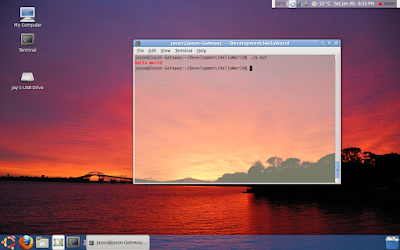
Make sure to use unassigned shortcuts, I used Ctrl-F1, F2 and F3 respectively. I am a bit unsure of including the "xrandr --addmode S-video 800x600" each time the script is run, but it doesn't seem to cause any problems. Without the mode being added, activating the TV out won't work. If I do find a way to keep the mode consistent, I'll update it here. Good luck, I hope others find these instructions useful (provided without any guarantees)! To end my post: something I haven't shown you yet on my blog: Jay's Desktop! I suppose it's about time =P.
 Take care everyone!
4. As root, copy this file into your /etc/X11/ folder (remember: back up the old one if there's already one there!)
5. Rename it to xorg.conf
6. Open your favorite editor (you can run startx now and do this from X Windows if you don't want to from the command line)
7. Find the "screen" module.
8. You'll see listed a number of display sections like so:
SubSection "Display"To the most common ones (or even just the ones you'll use), add the following line:
Viewport 0 0
Depth 24
EndSubSection
Virtual 2080 800
9. Save, and restart.
Upon running xrandr at a command line now, you should see your virtual desktop has changed:
Screen 0: minimum 320 x 200, current 1280 x 800, maximum 2080 x 800.
You can now use the --pos to set your S-video output to 1280x0, which will put the video output to the right of the current desktop and Volia! Extended Desktop! You can now drag windows over to it (such as videos), full screen them, move them, even see your desktop effects!
Wrapping it up
To prevent having to use xrandr all the time, I made a few simple scripts for configuring the TV Out.
1. Go into your home folder. Create a folder called "Scripts".
2. We're going to make three scripts:
One for turning the TV out on in Extended Desktop, One for Clone Mode, and one for turning it off. First the deactivate script:
3. First, deactivate: In gedit (or another editor), paste the following into a text file:
xrandr --output LVDS --mode 1280x800 --output S-video --offThis'll deactivate the S-video and make sure your LCD is the main display. Save it as "Deactivate_TV_Out" or something alone those lines.
4. Now, activate in clone mode:
xrandr --addmode S-video 800x600and save as "Activate_TV_Out_Clone"
xrandr --output LVDS --off --output S-video --mode 800x600
5. Finally, extended mode!
xrandr --addmode S-video 800x600
xrandr --output S-video --mode 800x600 --pos 1280x0
Call it "Activate_TV_Out_Extended"
6. For each file, right click and go to "Properties".
7. Under the permissions tab, click to allow for executing as program.
You can now click each of those to move back and forth between the various mode. Sometimes, you might have to deactivate the TV-out in order to activate it in a different mode. You can make shortcuts to these scripts, or as I did, set keyboard shortcuts:
1. Go to System->Preferences->Keyboard Shortcuts
2. Go to Add.
3. Give the shortcut a name "Activate_TV_Out_Extended", and point command to your script, e.g.
/home/jason/Scripts/Activate_TV_Out_Extended.
4. Do this for each of the other two scripts.
Make sure to use unassigned shortcuts, I used Ctrl-F1, F2 and F3 respectively. I am a bit unsure of including the "xrandr --addmode S-video 800x600" each time the script is run, but it doesn't seem to cause any problems. Without the mode being added, activating the TV out won't work. If I do find a way to keep the mode consistent, I'll update it here. Good luck, I hope others find these instructions useful (provided without any guarantees)! To end my post: something I haven't shown you yet on my blog: Jay's Desktop! I suppose it's about time =P.
 Take care everyone!
Subscribe to:
Posts (Atom)