IntroductionEver since I've been using
Ubuntu on my original laptop, I've been having great fun poking and prodding with its configuration, getting it to do some pretty fantastic things! My eventual goal is to turn this machine into a full fledged Linux-based
HTPC (Home Theatre PC), and have been working on the project on and off to achieve that goal.
I don't have a high definition television, but the laptop comes equipped with a S-video out port, perfect for connecting the PC to my standard definition television. When I used to run
openSuse, I had the proprietary ATI drivers installed and could use aticonfig to turn the extended desktop on and off.
ProblemsSince switching to Karmic, I haven't quite been able to get this to work. The ATI drivers don't come installed by default, and they aren't open source anyway. I did make an attempt to install the drivers, but the OS seemed to ignore them and continue to use the open source drivers. I didn't want them unless necessary anyway, but the question remained: how to configure extended desktop without ATI config?
...and solutions!The answer lies in the X Resize and Rotate Extension (RandR), or xrandr. If you run xrandr from Terminal, you should see something that looks like this:
Screen 0: minimum 320 x 200, current 1280 x 800, maximum 1280 x 1280
VGA-0 disconnected (normal left inverted right x axis y axis)
LVDS connected 1280x800+0+0 (normal left inverted right x axis y axis) 0mm x 0mm
1280x800 59.9*+
1280x720 59.9
1152x768 59.8
1024x768 60.0 59.9
800x600 60.3 59.9
640x480 59.9 59.4
On my laptop, LVDS refers to the LCD screen. Listed there are a number of possible resolutions and screen refresh rates.
To activate your S-video out (or VGA), you'll need to add a display mode for it. Use the addmode function of xrandr for this:
xrandr --addmode S-video 800x600
In this case, I want to set an S-video out mode of 800x600 resolution. You should then see the mode if you run xrandr again:
S-video disconnected (normal left inverted right x axis y axis)
800x600 60.3
In order to actually use the S-video out, there are a number of options. The simplest is merely to activate it:
xrandr --output S-video --mode 800x600
But not quite...This'll clone the desktop onto the S-video out. Unfortunately, since the LCD is running at 1280x800, you'll only see the top-left 800x600 pixels of your LCD display. This isn't particularly useful now is it? You can use the --pos YYYxZZZ option (e.g. --pos 100x100) option to move the output display around, but you'll still always be missing some of the screen.
Unfortunately, it was at this point that I hit a road block. I could clone the output, and move it around, but not get a dedicated output for the S-video out. What I decided to to was alter the command a little, I would turn off the LCD display, set the resolution to 800x600, then send it via the S-video:
xrandr --output LVDS --off --output S-video --mode 800x600
Now, I could have either a 1280x800 desktop on my LCD, or an 800x600 desktop on the TV. Not exactly what I wanted, but still sufficient for watching movies, videos, and even using the desktop on the TV.
Eventually, I realized what had to be done in order to extend the desktop.
- Make the "virtual desktop" (amount of screen area) bigger
- Use the --pos command to move the S-video output to the right of the LCD desktop.
xrandr has a --fb command for increasing the size of the "Frame Buffer" (the virtual desktop size). Alas, everytime I would try to change it, I'd get an error like this:
xrandr: screen cannot be larger than 1280x1280
Xorg.confDoing some searching, it seems the best advice was to configure the virtual desktop size in the Xorg.conf file (so the virtual screen size would be set while X server was starting). But hold on a moment...Ubuntu did away with Xorg.conf files in version 9.10! What to do? I made a few attempts at writing an Xorg.conf file by hand, but was always missing something causing my machine to reboot in "Low Graphics Mode". And my searches for changing the frame buffer without an xorg.conf, including a post on the
Ubuntu forums, revealed no results.
Luckily, I found
a post today on how to generate an xorg.conf from your current configuration. Essentially:
1. Reboot. When in grub, select to boot in recovery mode.
2. After logging in to a command prompt, run:
sudo Xorg -configure
3. This will create a xorg.conf.new file for you, likely in your home directory.
4. As root, copy this file into your /etc/X11/ folder (remember: back up the old one if there's already one there!)
5. Rename it to xorg.conf
6. Open your favorite editor (you can run startx now and do this from X Windows if you don't want to from the command line)
7. Find the "screen" module.
8. You'll see listed a number of display sections like so:
SubSection "Display"
Viewport 0 0
Depth 24
EndSubSection
To the most common ones (or even just the ones you'll use), add the following line:
Virtual 2080 800
9. Save, and restart.
Upon running xrandr at a command line now, you should see your virtual desktop has changed:
Screen 0: minimum 320 x 200, current 1280 x 800, maximum 2080 x 800.
You can now use the --pos to set your S-video output to 1280x0, which will put the video output to the right of the current desktop and Volia! Extended Desktop! You can now drag windows over to it (such as videos), full screen them, move them, even see your desktop effects!
Wrapping it up
To prevent having to use xrandr all the time, I made a few simple scripts for configuring the TV Out.
1. Go into your home folder. Create a folder called "Scripts".
2. We're going to make three scripts:
One for turning the TV out on in Extended Desktop, One for Clone Mode, and one for turning it off. First the deactivate script:
3. First, deactivate: In gedit (or another editor), paste the following into a text file:
xrandr --output LVDS --mode 1280x800 --output S-video --off
This'll deactivate the S-video and make sure your LCD is the main display. Save it as "Deactivate_TV_Out" or something alone those lines.
4. Now, activate in clone mode:
xrandr --addmode S-video 800x600
xrandr --output LVDS --off --output S-video --mode 800x600
and save as "Activate_TV_Out_Clone"
5. Finally, extended mode!
xrandr --addmode S-video 800x600
xrandr --output S-video --mode 800x600 --pos 1280x0
Call it "Activate_TV_Out_Extended"
6. For each file, right click and go to "Properties".
7. Under the permissions tab, click to allow for executing as program.
You can now click each of those to move back and forth between the various mode. Sometimes, you might have to deactivate the TV-out in order to activate it in a different mode. You can make shortcuts to these scripts, or as I did, set keyboard shortcuts:
1. Go to System->Preferences->Keyboard Shortcuts
2. Go to Add.
3. Give the shortcut a name "Activate_TV_Out_Extended", and point command to your script, e.g.
/home/jason/Scripts/Activate_TV_Out_Extended.
4. Do this for each of the other two scripts.
Make sure to use unassigned shortcuts, I used Ctrl-F1, F2 and F3 respectively. I am a bit unsure of including the "xrandr --addmode S-video 800x600" each time the script is run, but it doesn't seem to cause any problems. Without the mode being added, activating the TV out won't work. If I do find a way to keep the mode consistent, I'll update it here. Good luck, I hope others find these instructions useful (provided without any guarantees)! To end my post: something I haven't shown you yet on my blog: Jay's Desktop! I suppose it's about time =P.
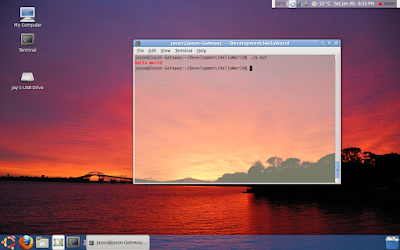
Take care everyone!


 What next?
 After it was finished (~20 minutes), I booted into Gnome. My customized desktop was gone *but* everything was still oddly "inverted":


